CTD Live Mobile app icon

SOFTWARE BY CTD · iPhone, iPad & Android

Available now

Control OBS Studio from Your iPhone or iPad

Turn the iPhone or iPad you already own into a tactile control surface for OBS Studio — live multiview, tap-to-preview, a real TAKE button, quick-cut to air, and stream/record control, all over obs-websocket. No account, no plugin, no capture card.

iOS 26.0 or later, iPadOS 26.0 or later — Android (Google Play) coming soon

Where you'll get it

Download CTD Live Mobile on the App Store
  • Google PlayComing soon
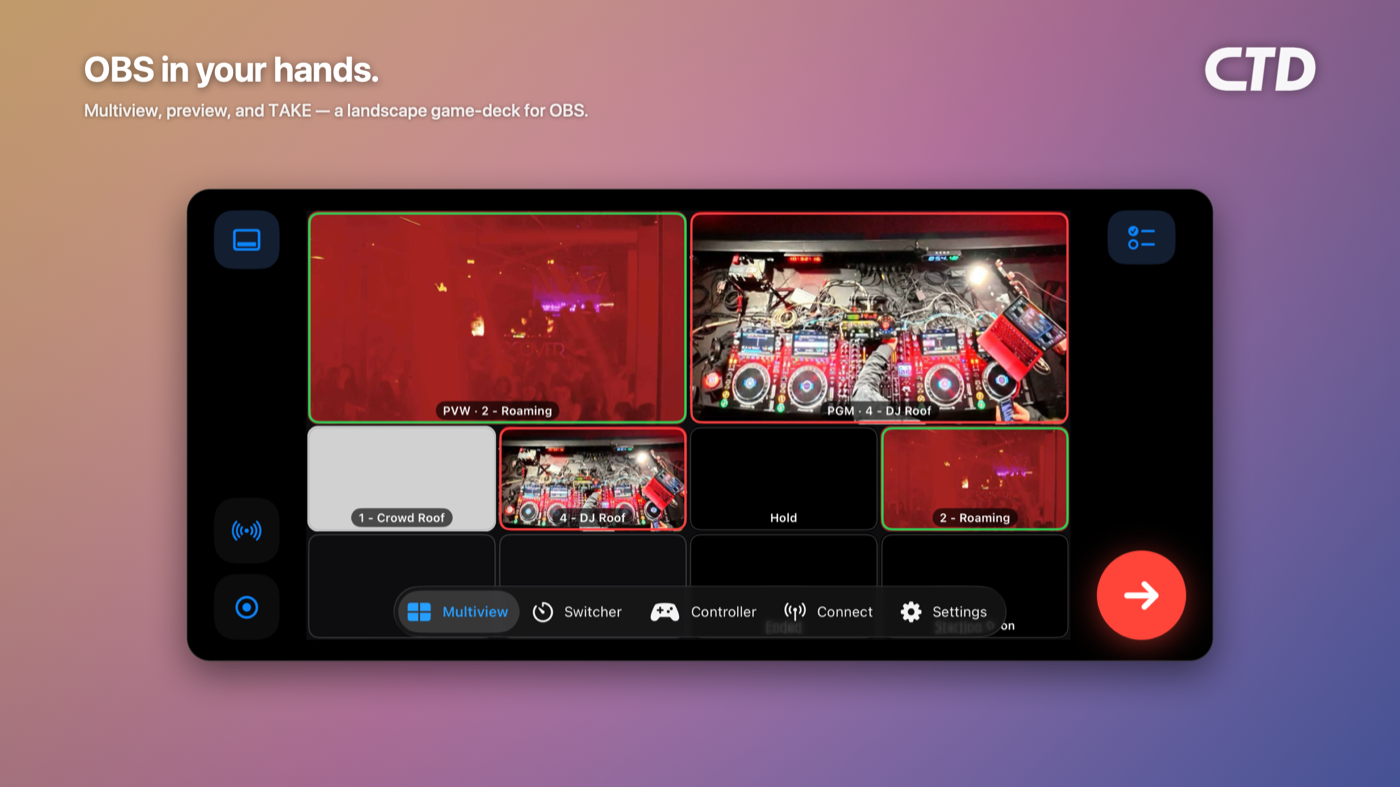
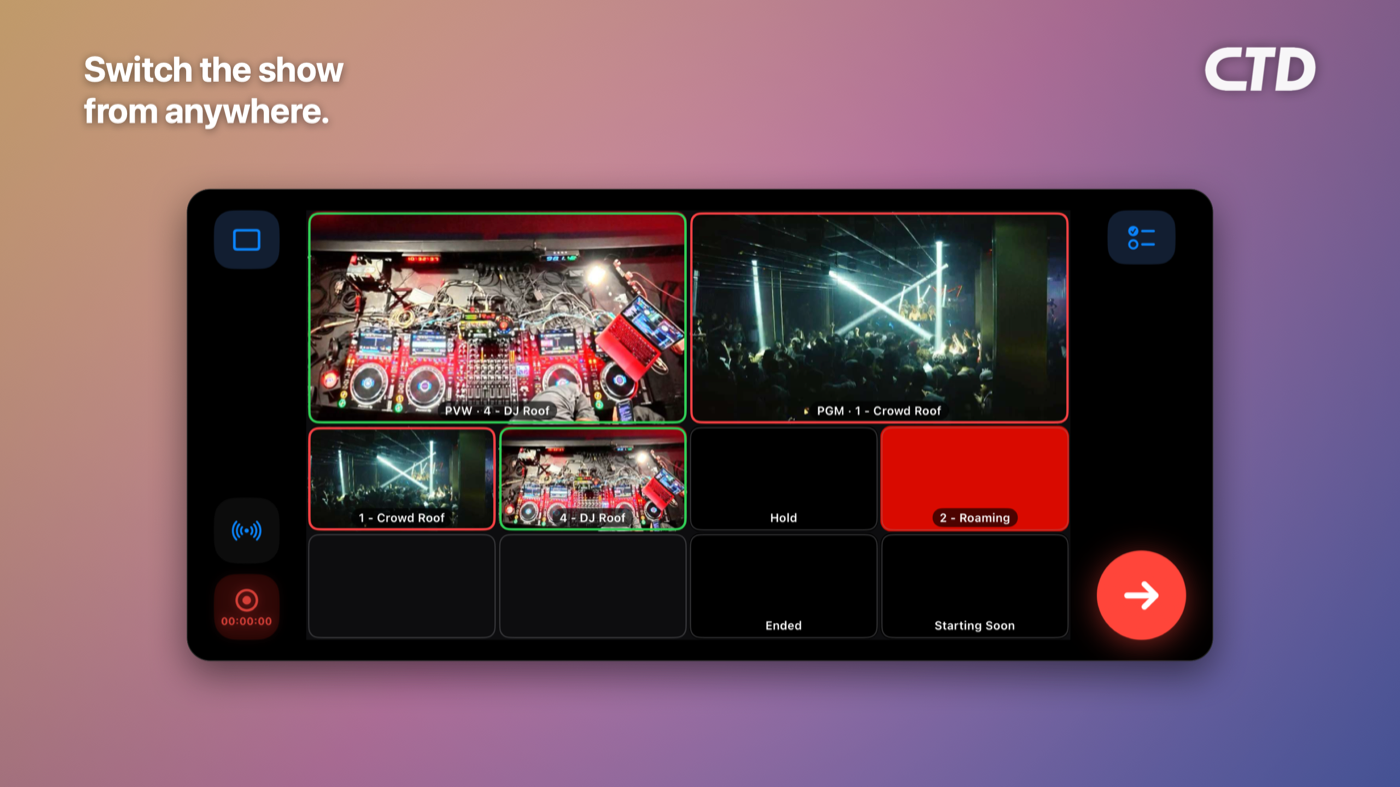
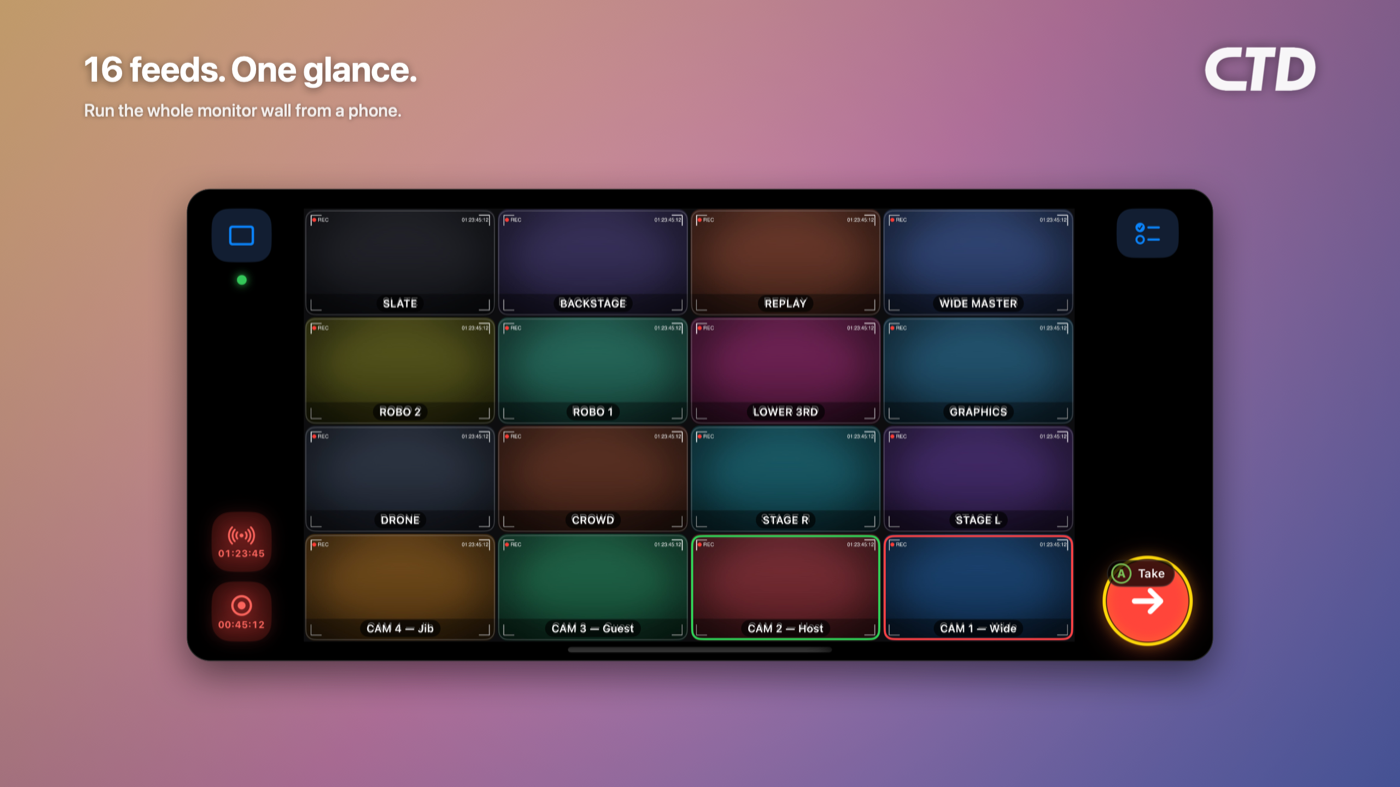
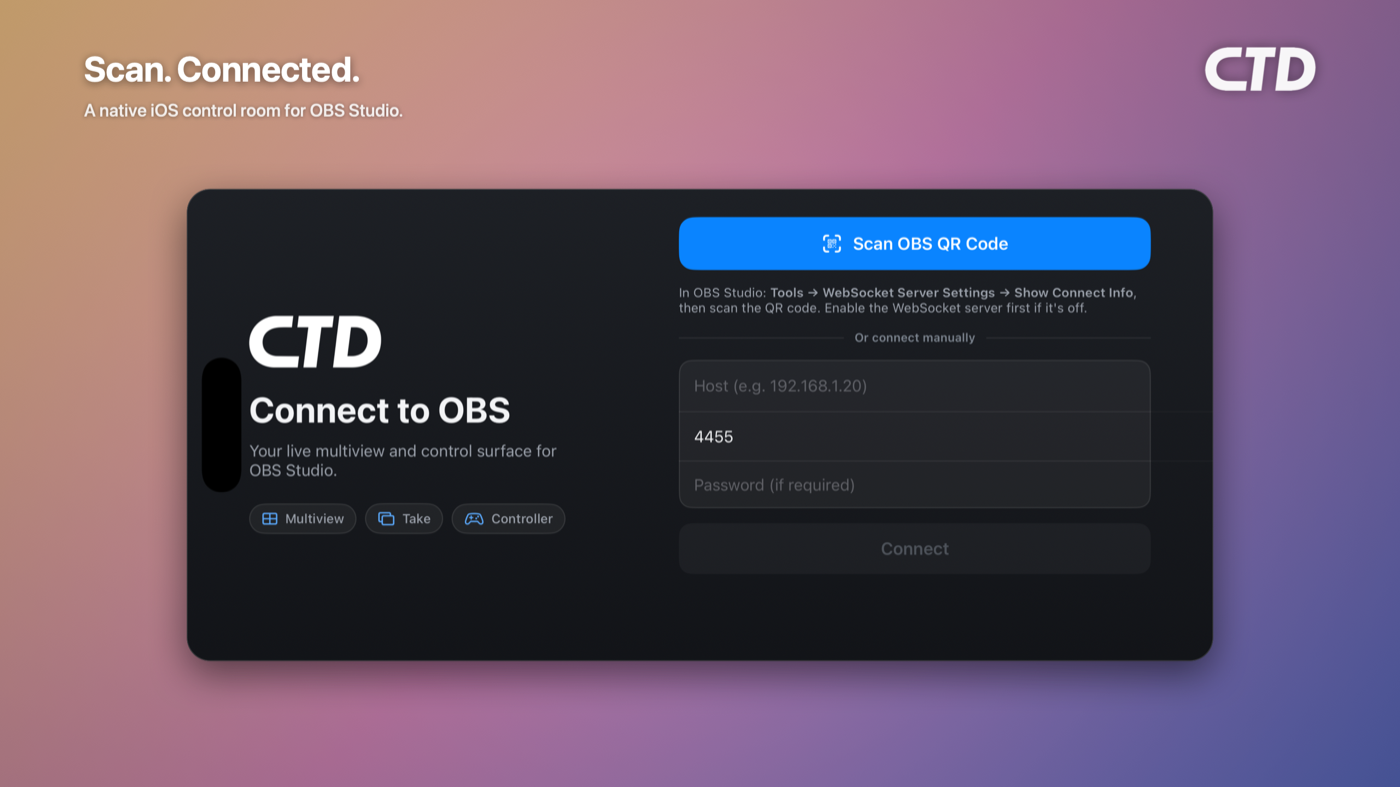
CTD Live Mobile OBS remote control deck on iPhone — switch OBS scenes from your phoneCTD Live Mobile broadcast controls on iPhone — start and stop OBS streaming and recording with an on-air tallyCTD Live Mobile OBS multiview monitor wall — live scene feeds at a glanceCTD Live Mobile QR-code pairing to connect to OBS over obs-websocket on the local network

A real control surface for OBS — not just a scene-switch toggle

Point it at a Mac, PC, or Linux box running OBS 28+ and drive the whole show from across the room — straight over obs-websocket 5.x, no plugin, no capture card. An OBS remote that actually feels like a switcher.

Live multiview in your hands

A grid of live scene thumbnails right on your phone — real OBS multiview, hardware-decoded through Metal so it stays smooth on a busy multicam show. (They're fast-refreshing stills from obs-websocket, not a video feed — plenty to see what's on each angle before you cut.)

Studio Mode done right: TAKE and hold-to-quick-cut

Tap an angle to load preview, hit TAKE to send it to program with your transition. Need a fast grab? Hold-to-quick-cut punches an angle to air and pops back when you let go — a real preview-to-program switcher in your pocket.

Start and stop streaming and recording from your phone

Start/stop streaming and recording with live timecode and clear on-air status. The buttons pulse while live, so one glance tells you the show's rolling — even with the OBS machine tucked away.

Run the whole show from a game controller

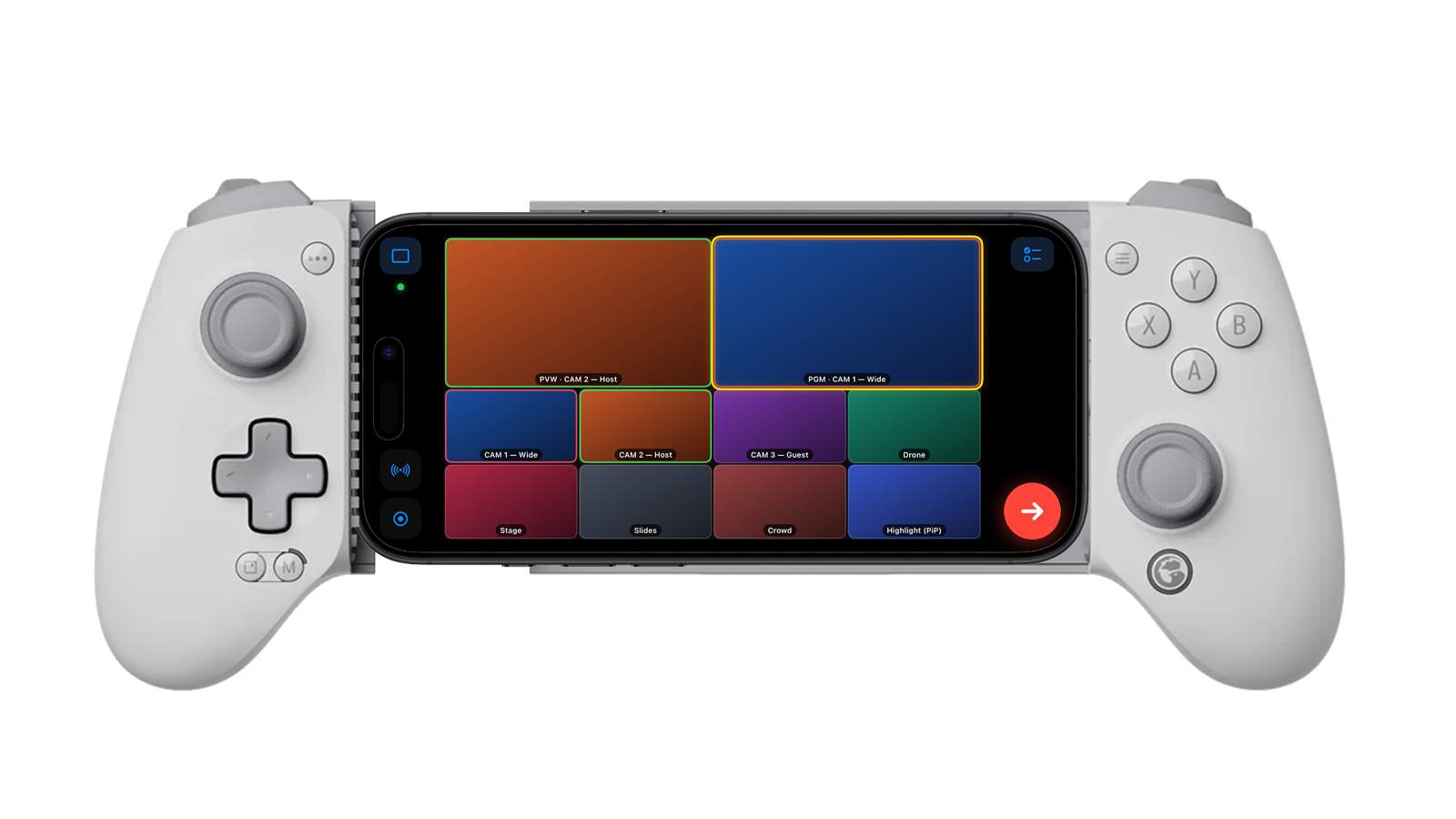
GameSir G8 Galileo controller gripping an iPhone running CTD Live Mobile — the PVW/PGM multiview deck with CAM 1–3, Drone, Stage, Slides, Crowd, and Highlight (PiP) scenes

Pair any MFi, Xbox, or PlayStation controller over Bluetooth or USB-C and steer an on-screen focus ring — preview, TAKE, or quick-cut with a button, eyes up on the show. The best feel is a telescopic clamp gamepad that grips your phone so the two become one switcher. Here are the two we've run Live Mobile with.

GameSir G8 Galileo

Wired USB-C · ~$80

Hall-effect sticks and triggers, two rear buttons. Grips USB-C iPhones, iPads, and Android — not Lightning.

SCUF Nomad

Bluetooth 5.0 · iPhone · ~$100

MFi-certified (iOS 16+), anti-drift thumbsticks, two remappable rear paddles, up to 16h battery.

Put the show on display glasses or a second screen

Plug in a display that acts as a real second screen — display glasses, a dock, a TV — and the multiview moves onto it while the phone dims to a plain gesture pad you don't have to look at. Swipe anywhere to move the selection, tap once to stage that angle in preview, double-tap to cut it to program, hold to come back to the normal deck. Every gesture answers with haptics, and the glasses carry a small corner tally so a glance tells you the show is rolling. If your glasses only mirror the phone instead of acting as a second screen, switch on AR mode in Settings for the same gesture control.

Automate scene playlists and trigger rules

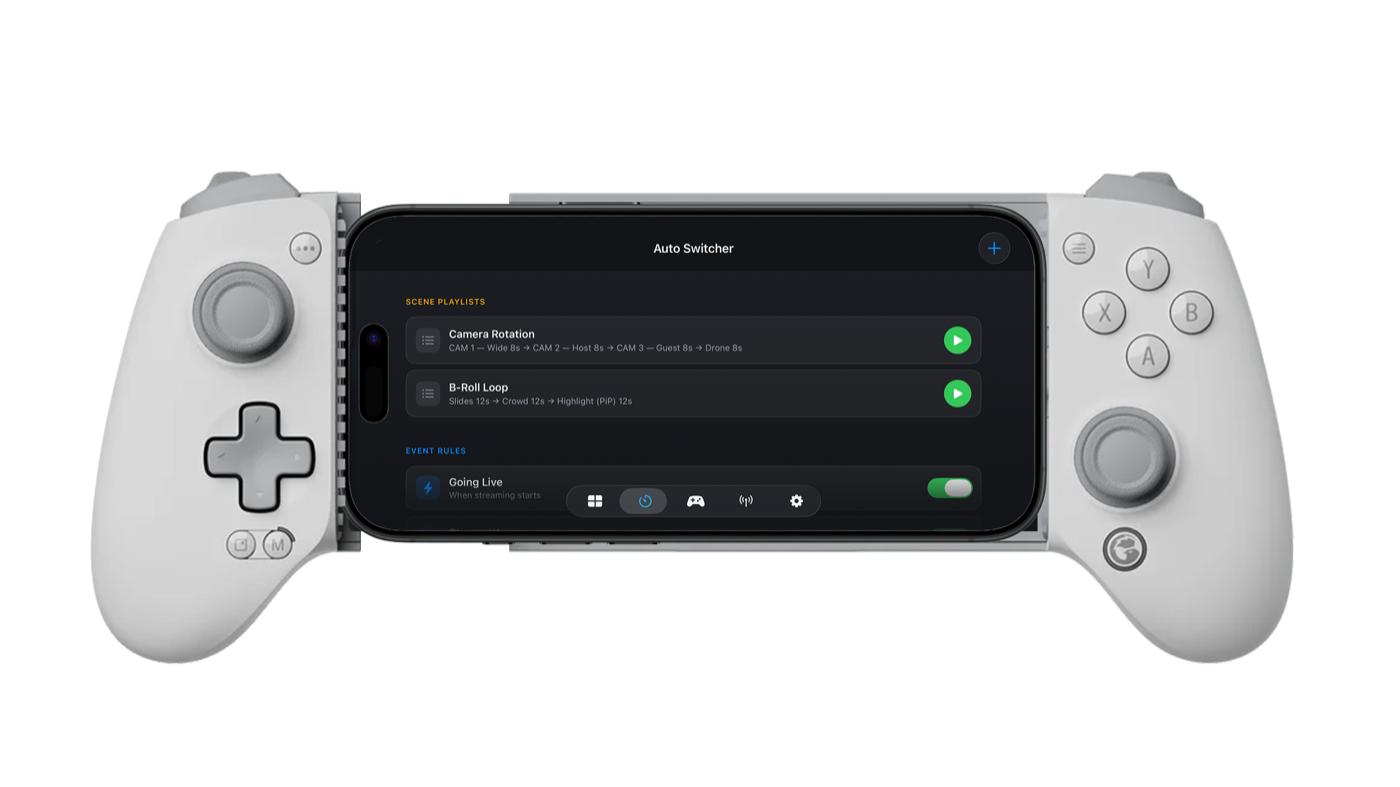
CTD Live Mobile's Auto Switcher on an iPhone in a GameSir G8 Galileo — scene playlists (Camera Rotation, B-Roll Loop) and an event rule that fires when streaming starts

Build scene playlists that roll a sequence hands-free, and trigger rules that fire on events like going live. Start one and work the room while the show runs itself — pre-roll loops, lower-third rotations, unattended segments.

Connect in seconds with a QR code — no plugin required

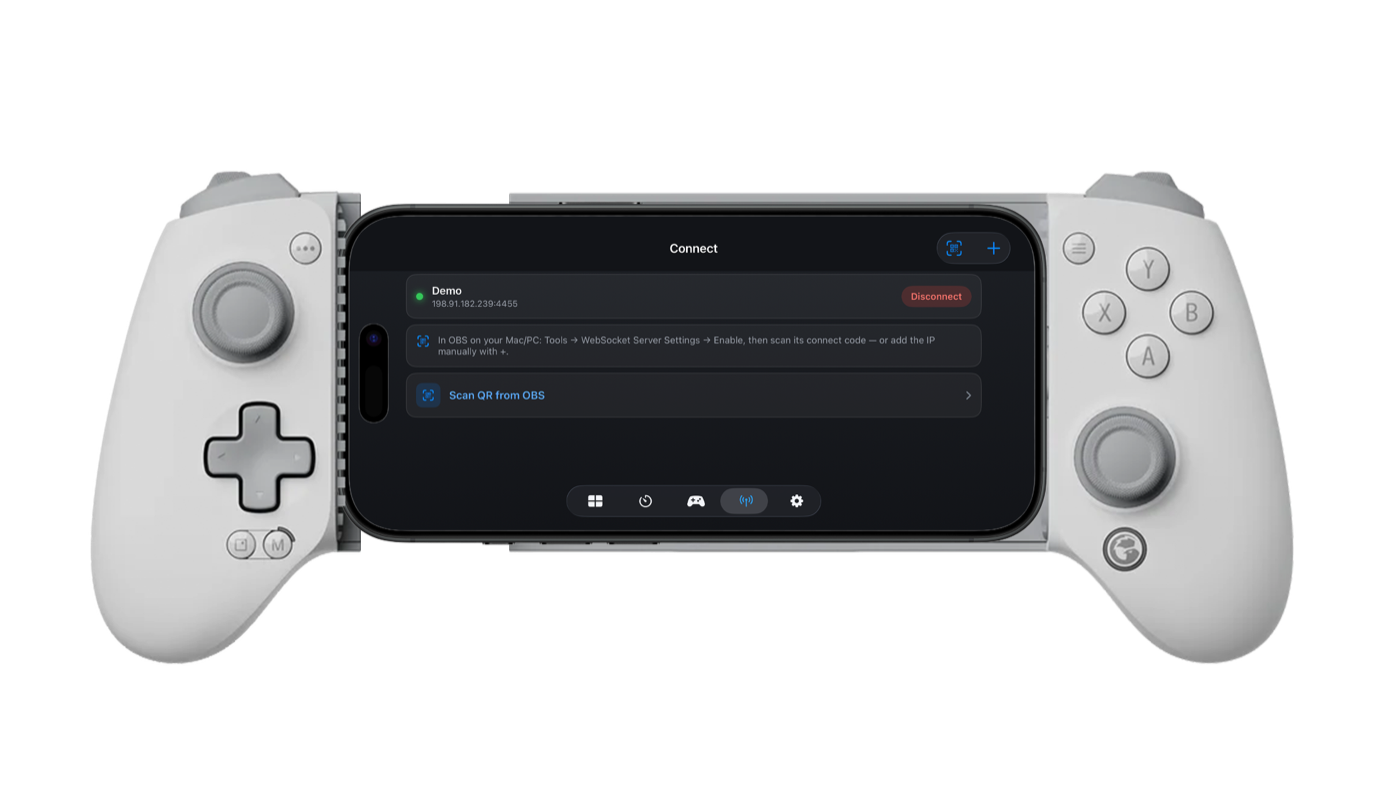
CTD Live Mobile's Connect screen on an iPhone in a GameSir G8 Galileo, paired to an OBS WebSocket server with a Scan QR from OBS option

In OBS: Tools → WebSocket Server Settings → Show Connect Info, scan the QR, and host, port, and password fill in. Prefer typing? Add it over obsws://, ws://, or wss://. OBS 28+ has the server built in — nothing to install.

Private by design, built for the device

No account, no ads, no analytics, no trackers — the App Privacy label is Data Not Collected. It talks only to your OBS server, and settings — including your OBS password — stay on-device in the app's own sandboxed storage. Hold it either way: landscape gives you the wide game-deck, portrait stacks it — program over preview over a two-column scene grid, with the controls in one thumb-reachable bar.

Coming soon to Android on Google Play

An Android port is on the way to Google Play, mirroring the iOS deck over the same obs-websocket connection. In active development now; iPhone and iPad are the full-featured flagship today, with the landscape multiview, Studio Mode TAKE and hold-to-quick-cut, and game-controller switching over Bluetooth or USB-C.

CTD Live Mobile vs OBS Blade

OBS Blade is the incumbent free, open-source obs-websocket remote, and it's a solid pick — it runs on Android as well as iOS, surfaces stream stats, and is genuinely free. Where CTD Live Mobile pulls ahead is the live production experience: a true OBS multiview grid with hardware-decoded thumbnails (Metal plus VideoToolbox, zero-copy) instead of a flat scene list, a proper Studio Mode with a dedicated TAKE button and hold-to-quick-cut, and full Xbox, PlayStation, and MFi game-controller switching with an on-screen focus ring — a switcher feature Blade and most rivals lack. Blade is free and open-source; Live Mobile is a one-time $0.99 with no subscription and no account — if you want a native iOS control surface that feels like a real switcher, it's the studio-first OBS Blade alternative. If you need Android today, OBS Blade still has you covered — see our full comparison for an honest, feature-by-feature table.

Frequently Asked Questions

What is CTD Live Mobile and what does it do?

CTD Live Mobile is a $0.99 OBS remote control app for iPhone and iPad. It turns your device into a live control surface for OBS Studio — switching scenes, running a live multiview, hitting TAKE in Studio Mode, quick-cutting angles to air, and starting or stopping streaming and recording — all over obs-websocket on your own network. It captures nothing itself; OBS does the work and the app commands it.

Do I need OBS Studio running for the app to work?

Yes. CTD Live Mobile is a client only and does nothing on its own. You need a Mac, PC, or Linux machine running OBS Studio 28 or newer with the built-in obs-websocket server enabled (Tools → WebSocket Server Settings), reachable on the same local network. Without a running OBS instance to connect to, there's nothing for the app to display or control.

How much does CTD Live Mobile cost, and does it have ads or in-app purchases?

It's a one-time $0.99 on the App Store ($1.99 CAD) — buy it once and it's yours, with no in-app purchases, no subscription, and no account. There are no ads, no analytics, and no trackers, and the App Privacy label is Data Not Collected. Every feature is in the box, in contrast to apps like ProducerPad and Switcher Pro that gate Pro features behind a trial, subscription, or lifetime purchase.

Which OBS version do I need, and do I have to install an OBS plugin?

You need OBS Studio 28 or newer, which ships with obs-websocket 5.x built in. There is no OBS-side plugin to install and no capture card required — just enable the WebSocket server under Tools → WebSocket Server Settings. The app connects straight to that built-in server over obsws://, ws://, or wss://.

Can I scan a QR code to connect instead of typing the host, port, and password?

Yes. In OBS, open Tools → WebSocket Server Settings → Show Connect Info and scan the QR code with your phone's camera — the host, port, and password fill in automatically. That's the only reason the app uses the camera. You can also enter host, port, and password manually if you prefer.

Does my phone need to be on the same network as my OBS computer?

In the typical setup, yes — your iPhone or iPad reaches OBS over your local network, which is why the app requests Local Network permission. It can also connect to an off-LAN OBS host by IP if you've set that up, and it supports wss:// (TLS) when you enable it. The app only ever talks to the OBS server you configure; there's no cloud service in between.

What's the difference between tap-to-preview, the TAKE button, and hold-to-quick-cut?

Tap-to-preview loads a scene into preview so you can line it up before it airs. The dedicated TAKE button then sends preview to program with your transition — the core of Studio Mode. Hold-to-quick-cut is different: press and hold a focused angle to cut it straight to air, then release to return. Together they give you a real preview-to-program switcher rather than tap-only scene cuts.

Does it support game controllers like Xbox, PlayStation, or MFi?

Yes — full game-controller support is built in via Apple's GameController framework. Pair an Xbox, PlayStation, or MFi controller over Bluetooth or USB-C, steer an on-screen yellow focus ring with the d-pad or stick, and preview, TAKE, or quick-cut with a button. You get custom button bindings and an in-app controller help map, making it a true game-controller OBS switcher — a feature most OBS remote apps don't offer.

What controller should I use to run OBS from my phone?

Any standard MFi, Xbox, or PlayStation controller works, but the sweet spot is a telescopic clamp-style mobile gamepad that grips the phone in the middle, so phone and controller become one handheld switcher — stick to move the focus ring, buttons to TAKE and quick-cut. We've tested and recommend two. The GameSir G8 Galileo plugs in wired over USB-C (USB-C iPhones, iPads, and Android phones — not Lightning iPhones), with Hall-effect sticks and triggers and two rear buttons, around $80. The SCUF Nomad is an iPhone clamp that pairs over Bluetooth 5.0, is MFi-certified (iOS 16+), and adds anti-drift thumbsticks, two remappable rear paddles, and up to 16 hours of battery, about $100. Both mapped into Live Mobile's existing controller bindings with no special setup.

Is CTD Live Mobile a good alternative to OBS Blade?

It's built to be a studio-first OBS Blade alternative. Blade is free and open-source and Live Mobile is a one-time $0.99, but CTD Live Mobile adds a true live multiview grid with hardware-decoded thumbnails, a proper Studio Mode with a dedicated TAKE button, hold-to-quick-cut, and game-controller switching — where OBS Blade leans on a flatter scene list and stream stats. See our full OBS Blade alternative comparison for a fair, side-by-side breakdown.

Does the app collect any of my data or require an account?

No. There's no account or sign-in and the app collects no personal data of any kind — no analytics, no ads, no trackers. It communicates only with your own OBS server, and your settings — including your OBS password — stay on your device in the app's own sandboxed storage.

Which devices and iOS versions are supported, and does it work in portrait?

CTD Live Mobile supports iPhone and iPad on iOS and iPadOS 26.0 or newer — a deliberate modern-devices-only floor. Both rotate, and the deck reflows live as you turn the device. Landscape is the wide game-deck control surface, held sideways like a game pad; portrait stacks it — program over preview over a two-column scene grid, with every control in one bottom bar and TAKE where your thumb already is. iPad runs the same deck on a larger canvas, so more fits on screen at once.

Available now.

CTD Live Mobile is live — grab it from the store above. More platforms are on the way; tell us what you'd run it on and we'll keep you posted. Local-first — no accounts, no cloud. Read the privacy policy.