
Plug In. Tap. Done.
Memory cards are detected on insert and deep-scanned for media wherever the camera hides it — Sony, Canon, Panasonic, GoPro, DJI, Blackmagic and more. The shooter taps their name and the offload starts immediately.

SOFTWARE BY CTD · macOS
The dead-simple DIT and card ingest app for Mac, built for live-event videographers, photographers, and multi-cam creators. Plug in a memory card, tap who you are — footage is offloaded, checksum-verified, tagged with your metadata, and filed exactly where your editor expects it. Your footage is only ever read — nothing is erased, formatted, or rewritten.
Native macOS app · macOS 13+ · Intel & Apple Silicon · Redesigned in Liquid Glass for macOS 26 · Happy on a cheap MacBook at the back of the club.
Now on the Mac App Store — download it today.
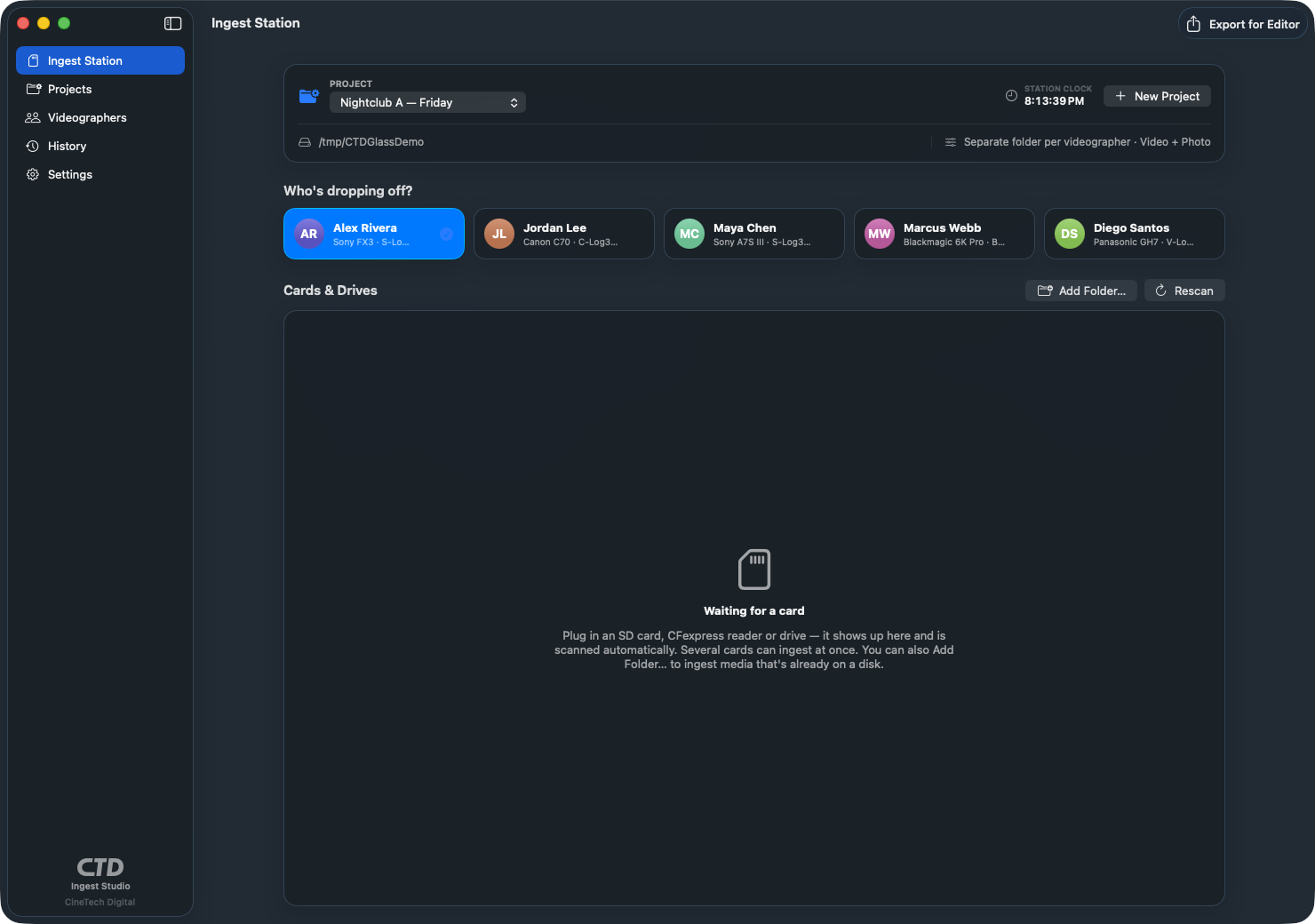
Memory cards are detected on insert and deep-scanned for media wherever the camera hides it — Sony, Canon, Panasonic, GoPro, DJI, Blackmagic and more. The shooter taps their name and the offload starts immediately.
Every file is SHA-256 hashed while it streams off the card, then the copy is read back and re-hashed. Your footage is only ever read — nothing on a card is erased, formatted, or rewritten — so it is never at risk.
Multiple videographers, multiple cards at the same time — each card gets its own ingest engine and progress bar, with zero filename or manifest collisions, even into the same folder.
Export a synced timeline for DaVinci Resolve, Final Cut Pro, and Adobe Premiere Pro — each shooter on their own lane, positioned by capture time — plus a per-clip metadata CSV and color notes for every camera.
Every Sony body writes an XML sidecar next to each clip, and CTD Ingest Studio reads it — Alpha and FX through the cinema line, MXF and MP4 alike. Capture time comes from the camera itself, so the timeline is right even when the file dates aren’t, and camera model, color science and lens flow straight into the editor handoff.
A camera with the wrong clock is caught before it wrecks your multicam. CTD Ingest Studio flags a drop-off whose capture time is off, and one step corrects the whole batch — so every angle still lines up on the timeline. Times actually fine? Dismiss the warning and move on.
A crash, a sleep, or a relaunch mid-ingest doesn’t send you back to the beginning — an interrupted offload resumes right where it left off. Need one loose file, like a downloaded stream? Add File… ingests it straight into the project.
Footage somebody already dragged off by hand doesn’t need copying twice. Point the app at that folder and it’s indexed where it sits — nothing duplicated, your destination untouched — and those clips still join the project and land on the editor timeline at their original paths.
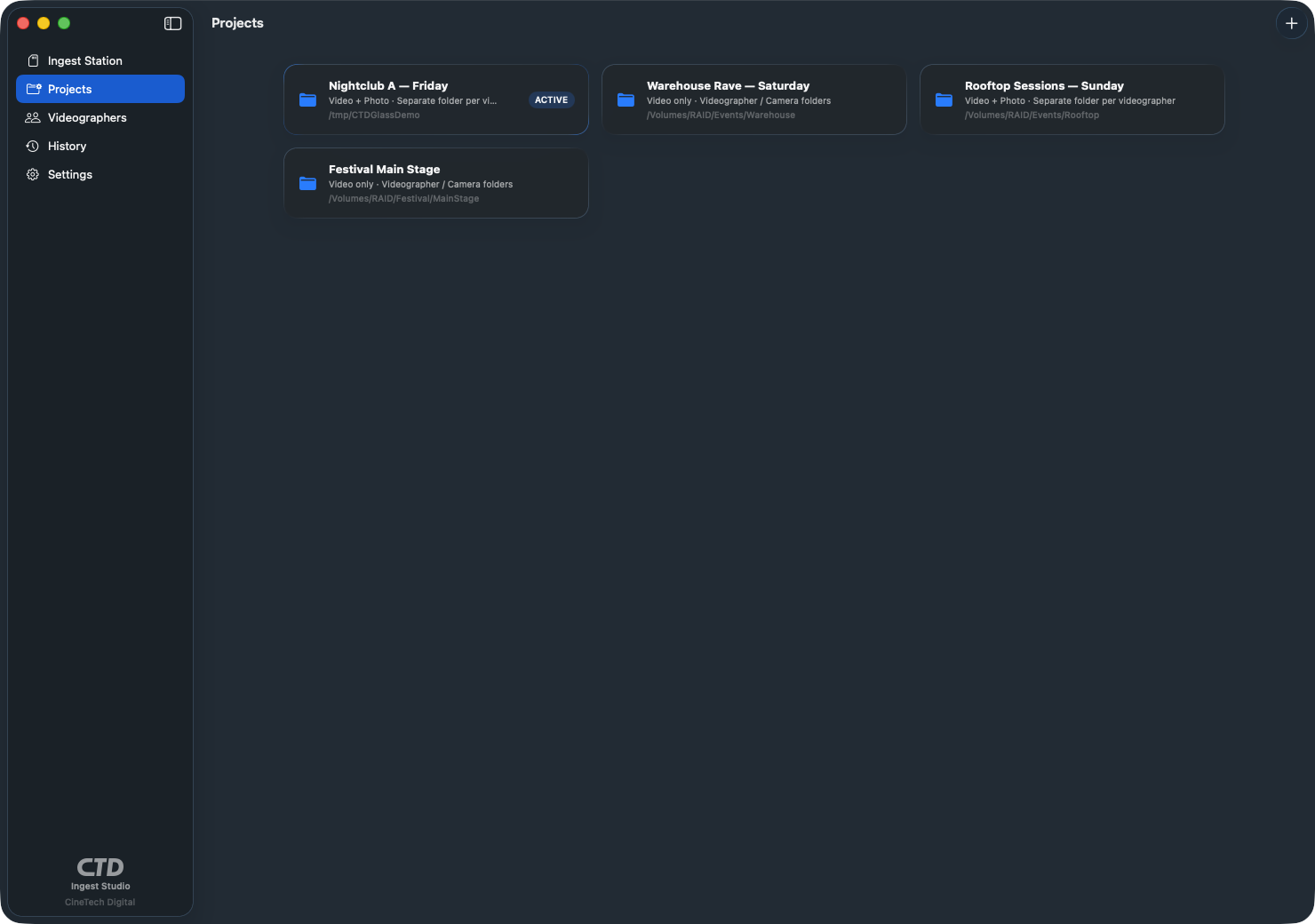
One project per event or night, each with its own destination and folder structure. Save any setup as a template — “Club Night”, “Multi-Cam Concert”, “Photo Booth” — and tomorrow is one click.
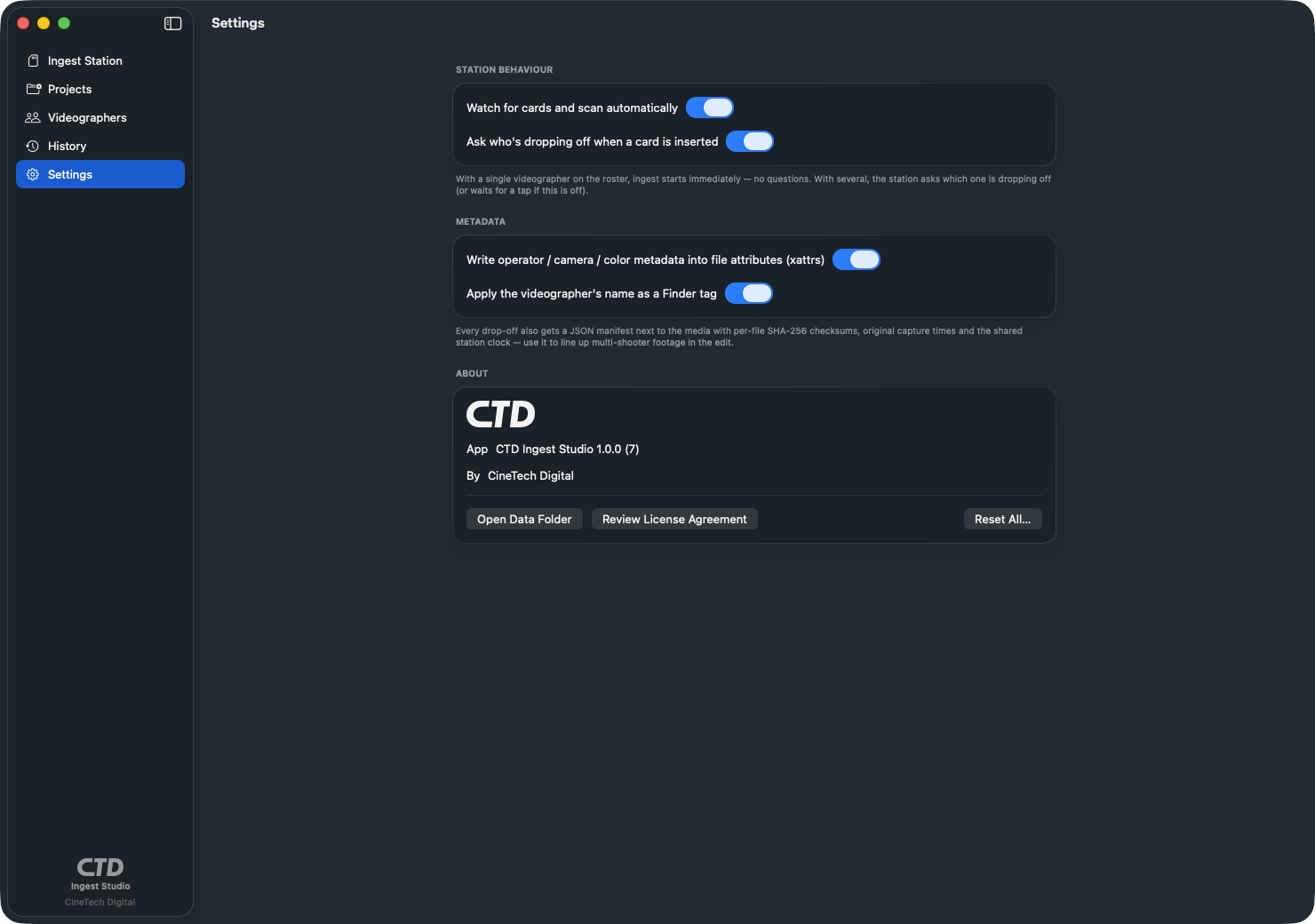
Operator, camera, color settings, checksums, and capture times written into JSON manifests, Finder tags, and extended attributes on every copied file. Incremental ingest re-copies only new clips.
Projects, people, and a station screen a shooter can use mid-set with one hand and a drink in the other.
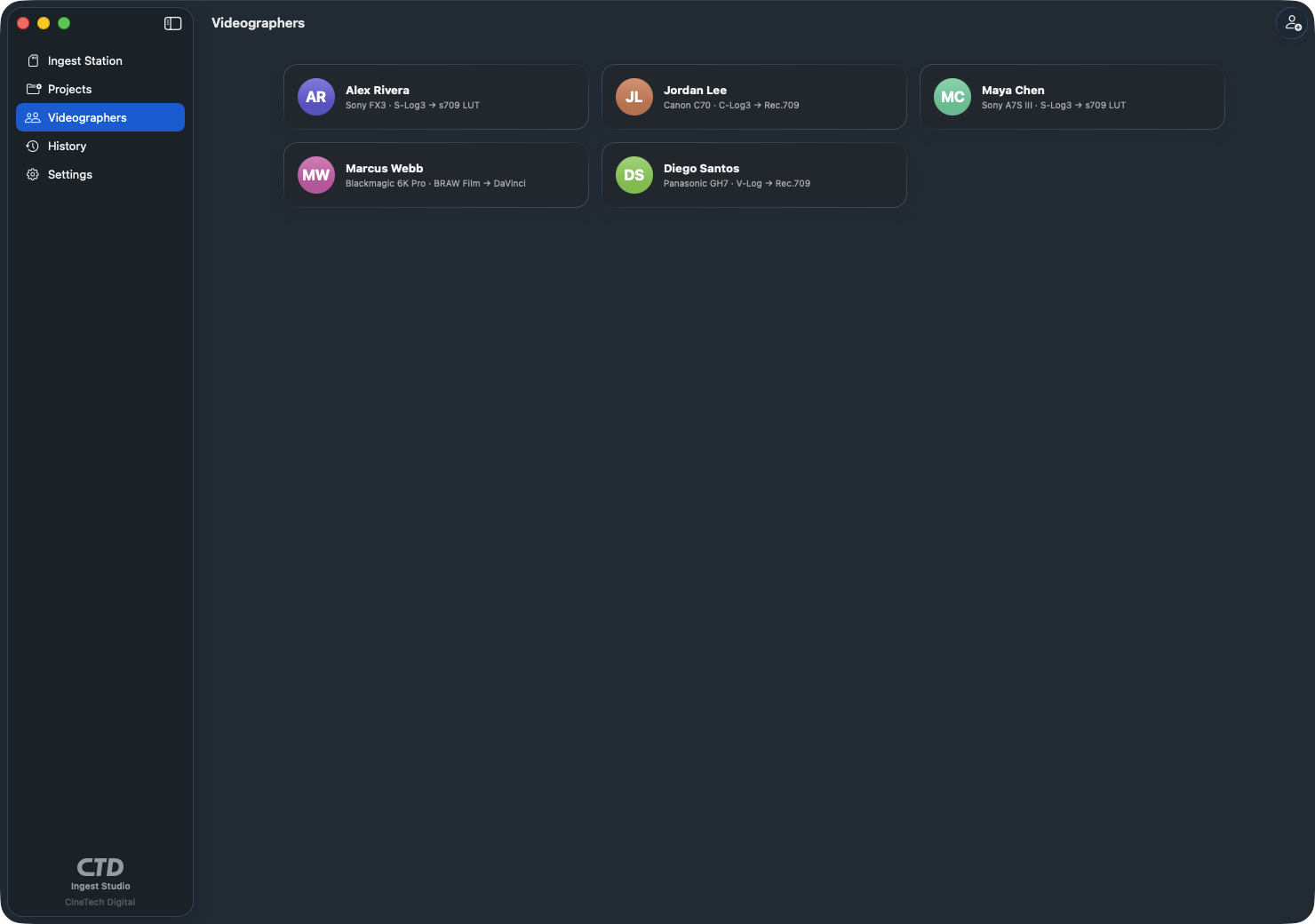
Cards are auto-detected on insert and deep-scanned for media wherever the camera hides it — Sony
PRIVATE/M4ROOT, Canon
DCIM/CONTENTS,
AVCHD, and more — with a full-volume fallback scan so footage in odd folders is never missed.
Smarter card detection ignores your Mac’s own disks and mounted disk images, so only real camera cards show up.
SD, microSD, and CFexpress cards, USB readers, and even folders already on a disk all ingest
through the same scan → tag → copy → verify pipeline.
Sony shooters get the camera’s own clock. Every Sony body writes a
per-clip XML sidecar next to the footage, and it’s read automatically — the whole line, from Alpha and FX
bodies to the cinema cameras: MXF in XDROOT/Clip
as well as MP4 in PRIVATE/M4ROOT/CLIP.
Capture time comes from the camera instead of the file system, so the timeline is right even when the file
dates have been mangled somewhere between the card and your Mac.
01
New project from a template, name it, pick the destination folder, add tonight’s shooters.
02
A card goes in, the station asks who’s dropping off, they tap their name. Copy and verify runs — several cards in parallel are fine.
03
When every checksum passes, the card is verified and cleared for reuse — your footage was only ever read, and nothing on it was erased. Next shooter.
04
One click exports a synced timeline plus camera and color notes. The edit starts organized.
End of the night, one click exports everything the editor needs: a synced timeline for whichever NLE you cut in — .fcpxml for DaVinci Resolve and Final Cut Pro, and FCP7 XML for Adobe Premiere Pro — with each videographer on their own lane and clips positioned by capture time, a ResolveMetadata.csv tagging every clip with shooter, camera, and color, and editor notes spelling out exactly which color settings each camera shot — “S-Log3 → s709 LUT” and all. On Sony, that CSV fills itself in: camera model, color science and even the lens come straight off the camera’s own per-clip sidecar. The edit starts organized instead of starting with an hour of sorting.
Made for multi-camera shooting — live-event crews, and just as much for multi-cam vlogs, podcasts and event recaps. Drop in every camera’s card and each angle lands on its own timeline lane, lined up by capture time — your multicam is synced before you open the edit. A-cam, B-cam, gimbal and action cam — mixed brands and formats ingest and sync together.
CTD Ingest Studio is a DIT and media offload app for macOS built for live-event videographers and photographers. It copies footage off memory cards, verifies every file with SHA-256 checksums, tags clips with shooter and camera metadata, and files everything where the editor expects it. Your footage is only ever read — nothing on a card is erased, formatted, or rewritten.
Cards are auto-detected on insert and deep-scanned for media wherever the camera stores it — Sony (PRIVATE/M4ROOT), Canon (DCIM/CONTENTS), Panasonic, AVCHD, GoPro, DJI, and Blackmagic layouts, plus a full-volume fallback scan. SD, microSD, CFexpress, and any card your Mac can mount works, and you can also ingest from folders already on a disk.
Every file is SHA-256 hashed as it streams off the card, then the copied file is read back from the destination drive and re-hashed. The two hashes must match for every single file before a card is marked fully verified. Your footage is only ever read — nothing on a card is erased, formatted, or rewritten — so your media is never at risk.
Yes — it’s made for multi-camera shooting whether that’s a live-event crew or a multi-cam vlog, podcast, or event recap. Drop in every camera’s card and each angle lands on its own timeline lane, lined up by capture time, so your multicam is synced before you open the edit. A-cam, B-cam, gimbal, and action cam — mixed brands and formats ingest and sync together.
Yes — all three. One click exports a synced timeline with each videographer on their own lane and clips positioned by capture time: a .fcpxml that imports into DaVinci Resolve and Final Cut Pro, and an FCP7 XML (xmeml) for Adobe Premiere Pro. You also get a ResolveMetadata.csv tagging every clip and editor notes listing each camera’s color settings (for example S-Log3 → s709 LUT).
CTD Ingest Studio catches it. When a drop-off’s capture time is off — a camera whose clock was never set, or set to the wrong day — it’s flagged before it can throw off your multicam, and one step (“Fix the Sync”) corrects the whole drop-off’s capture time at once so every angle still lines up on the timeline. If the times were actually fine, you can dismiss the warning instead. On Sony, this usually never comes up: capture time is read from the camera’s own XML sidecar, not the file dates.
Sony cameras write a per-clip XML sidecar (NonRealTimeMeta) next to every clip, and CTD Ingest Studio reads it automatically — across the whole Sony line, Alpha and FX bodies as well as the cinema line like VENICE 2, MXF in XDROOT/Clip and MP4 in PRIVATE/M4ROOT/CLIP. Capture time comes from the camera’s own clock rather than the file system, so the timeline is correct even when file dates have been mangled by a card reader, a copy, or a hand-off. The sidecar’s camera model, color science, and lens flow into the editor handoff too and auto-fill ResolveMetadata.csv.
Yes — add that folder in place. It’s indexed where it already sits: nothing is re-copied, nothing is duplicated, and your project destination is left untouched. Those clips still join the project and land on the editor timeline at their original paths, alongside everything you ingested through the station.
Nothing is lost. If the app crashes, the Mac sleeps, or you relaunch mid-ingest, an interrupted offload resumes right where it left off instead of starting over. You can also ingest a single loose file — a downloaded stream or one stray clip — straight into a project with Add File….
That’s the whole point. Add your team once, assign shooters per project, and when a card is inserted the station asks who’s dropping off with big tap targets. Multiple cards ingest at the same time, each with its own progress bar, with no filename or manifest collisions.
Any Mac running macOS 13 Ventura or later, Intel or Apple Silicon. It’s a native SwiftUI app that’s happy on a cheap MacBook at the back of the club.
No. CTD Ingest Studio is local-only: no accounts, no telemetry, no cloud. Your footage, projects, and ingest history stay on your Mac and the destination drives you choose.
Your media is only ever read — no clip is erased, formatted, or rewritten. The one thing the app ever puts on a card is a small hidden marker file at the root (.ctd_ingest_marker.json) listing what that project has already copied, which is what makes re-inserting a card copy only the new clips. Turn a project’s “copy only new files” setting off and the card is handed back byte-for-byte as it came in. Once every file is verified, you wipe the card in-camera yourself — the app never does it for you.
CTD Ingest Studio is available to download on the Mac App Store now. Get it on any Mac running macOS 13 or later. Questions? Email info@cinetech.digital or use the CTD support page.
CTD Ingest Studio is live on the Mac App Store — download it today on any Mac running macOS 13 or later.
Built by CTD — the crew shooting nightclubs, live streams, and commercial campaigns across the GTA and Miami. Your footage never leaves your machines: no accounts, no cloud, no telemetry. Read the privacy policy or get help on the support page.